# Amazon SmartConnect

## <span class="TextRun SCXW119559566 BCX8" data-contrast="none" lang="EN-GB" xml:lang="EN-GB"><span class="NormalTextRun SCXW119559566 BCX8" data-ccp-parastyle="heading 1">1 - Introduction</span></span><span class="EOP SCXW119559566 BCX8" data-ccp-props="{"134245418":true,"134245529":true,"335559738":240,"335559739":0}"> </span>

<span class="TextRun SCXW119559566 BCX8" data-contrast="auto" lang="EN-GB" xml:lang="EN-GB"><span class="NormalTextRun SCXW119559566 BCX8" data-ccp-parastyle="Normal (Web)">Welcome to our guide on the Amazon SmartConnect Integration with NCompass.   
This guide will go over the basics of how to list a product onto the SmartConnect platform, and the process of delivering these items to a customer.   
If at any point you have questions about topics in this guide, do not hesitate to reach out to our Support Team on the normal channels.   
  
</span></span>

## 2 - Requirements 

<span class="TextRun SCXW119559566 BCX8" data-contrast="auto" lang="EN-GB" xml:lang="EN-GB"><span class="NormalTextRun SCXW119559566 BCX8" data-ccp-parastyle="Normal (Web)">Before you can begin using this Integration, there are a few things to note: </span></span>

1. <span class="TextRun SCXW119559566 BCX8" data-contrast="auto" lang="EN-GB" xml:lang="EN-GB"><span class="NormalTextRun SCXW119559566 BCX8" data-ccp-parastyle="Normal (Web)">Your NCompass system must already be linked up to your Amazon Seller Central Account </span></span>
2. <span class="TextRun SCXW119559566 BCX8" data-contrast="auto" lang="EN-GB" xml:lang="EN-GB"><span class="NormalTextRun SCXW119559566 BCX8" data-ccp-parastyle="Normal (Web)">You have signed the relevant paperwork provided by our Sales/Admin teams to add the SmartConnect Module to your NCompass Package </span></span>
3. <span class="TextRun SCXW119559566 BCX8" data-contrast="auto" lang="EN-GB" xml:lang="EN-GB"><span class="NormalTextRun SCXW119559566 BCX8" data-ccp-parastyle="Normal (Web)">You have been invited to join the SmartConnect Program by your Amazon Representative </span></span>
4. <span class="TextRun SCXW119559566 BCX8" data-contrast="auto" lang="EN-GB" xml:lang="EN-GB"><span class="NormalTextRun SCXW119559566 BCX8" data-ccp-parastyle="Normal (Web)">You have been advised by the Calculus Support Team, and your Amazon Representative that your system is now linked to Amazon SmartConnect, and you are ready to start listing products onto the platform </span></span>

<p class="callout info"><span class="TextRun SCXW119559566 BCX8" data-contrast="auto" lang="EN-GB" xml:lang="EN-GB"><span class="NormalTextRun SCXW119559566 BCX8" data-ccp-parastyle="Normal (Web)">Note: Both Calculus and Amazon need to carry out preparation work in the background to get this all setup and ready for you, which is why you require the go ahead from both parties before you can proceed with the listing process.   
  
Amazon will typically ask that you list a small number or low volume products at the start of the migration, and ask that you slowly ramp this up overall several weeks before you entire Catalogue is listed on the platform. Your Amazon Rep will discuss this with you in more detail in the leadup to starting the Listing Process. </span></span></p>

<span class="TextRun SCXW119559566 BCX8" data-contrast="auto" lang="EN-GB" xml:lang="EN-GB"><span class="NormalTextRun SCXW119559566 BCX8" data-ccp-parastyle="Normal (Web)"> </span></span>

## 3 - How to list products on SmartConnect 

### <span class="EOP SCXW119559566 BCX8" data-ccp-props="{"134245418":true,"134245529":true,"335559738":240,"335559739":0}">3.1 - Create an Amazon Price </span>

<span class="TextRun SCXW119559566 BCX8" data-contrast="auto" lang="EN-GB" xml:lang="EN-GB"><span class="NormalTextRun SCXW119559566 BCX8" data-ccp-parastyle="Normal (Web)">NCompass knows that a product is linked to Amazon by the fact it has a Amazon Retail price against it. This is the case for all types of Amazon listings, Smart Connect ones included.   
</span></span><span class="TextRun SCXW119559566 BCX8" data-contrast="auto" lang="EN-GB" xml:lang="EN-GB"><span class="NormalTextRun SCXW119559566 BCX8" data-ccp-parastyle="Normal (Web)">So Product Info &gt; Financial &gt; retail prices &gt; create a new price for the Amazon customer category. </span></span><span class="EOP SCXW119559566 BCX8" data-ccp-props="{"134233117":false,"134233118":false,"201341983":0,"335559738":0,"335559739":0,"335559740":240}"> </span>

<span class="TextRun SCXW119559566 BCX8" data-contrast="auto" lang="EN-GB" xml:lang="EN-GB"><span class="NormalTextRun SCXW119559566 BCX8" data-ccp-parastyle="Normal (Web)"> </span></span><span class="TextRun SCXW119559566 BCX8" data-contrast="auto" lang="EN-GB" xml:lang="EN-GB"><span class="NormalTextRun SCXW119559566 BCX8" data-ccp-parastyle="Normal (Web)">At the time of writing, you can not have different Amazon Prices for different listing types (so for example you can't have one SmartConnect Price, one FBA Price and one MFN Price. It all comes under one central Amazon Price) </span></span><span class="LineBreakBlob BlobObject DragDrop SCXW119559566 BCX8"><span class="SCXW119559566 BCX8">  
</span></span><span class="TextRun SCXW119559566 BCX8" data-contrast="auto" lang="EN-GB" xml:lang="EN-GB"><span class="NormalTextRun SCXW119559566 BCX8" data-ccp-parastyle="Normal (Web)">  
However, should you need to be able to do this, then you can do the following: </span></span>

<div class="SCXW119559566 BCX8" id="bkmrk-create-your-product-"><div class="ListContainerWrapper SCXW119559566 BCX8">- <span class="TextRun SCXW119559566 BCX8" data-contrast="auto" lang="EN-GB" xml:lang="EN-GB"><span class="NormalTextRun SCXW119559566 BCX8">Create your product with your </span><span class="NormalTextRun SpellingErrorV2Themed SCXW119559566 BCX8">SmartConnect</span><span class="NormalTextRun SCXW119559566 BCX8"> listing </span><span class="NormalTextRun SCXW119559566 BCX8">(section 3.2 on how to List a product) </span><span class="NormalTextRun SCXW119559566 BCX8">and price</span><span class="NormalTextRun SCXW119559566 BCX8">.</span></span>
- <span class="TextRun SCXW119559566 BCX8" data-contrast="auto" lang="EN-GB" xml:lang="EN-GB"><span class="NormalTextRun SCXW119559566 BCX8">Create a new soft-bundle product, which </span><span class="NormalTextRun SCXW119559566 BCX8">contains</span><span class="NormalTextRun SCXW119559566 BCX8"> just that main product</span><span class="NormalTextRun SCXW119559566 BCX8">.</span></span>
- <span class="TextRun SCXW119559566 BCX8" data-contrast="auto" lang="EN-GB" xml:lang="EN-GB"><span class="NormalTextRun SCXW119559566 BCX8">List that soft-bundle product against your MFN </span><span class="NormalTextRun ContextualSpellingAndGrammarErrorV2Themed SCXW119559566 BCX8">channel, and</span><span class="NormalTextRun SCXW119559566 BCX8"> set a different price for the bundle</span><span class="NormalTextRun SCXW119559566 BCX8">.</span></span><span class="EOP SCXW119559566 BCX8" data-ccp-props="{"201341983":0,"335559739":0,"335559740":240}"> </span>

</div></div><span class="TextRun SCXW119559566 BCX8" data-contrast="auto" lang="EN-GB" xml:lang="EN-GB"><span class="NormalTextRun SCXW119559566 BCX8" data-ccp-parastyle="Normal (Web)">Soft bundles auto-inherit stock from their </span><span class="NormalTextRun ContextualSpellingAndGrammarErrorV2Themed SCXW119559566 BCX8" data-ccp-parastyle="Normal (Web)">contents, and</span><span class="NormalTextRun SCXW119559566 BCX8" data-ccp-parastyle="Normal (Web)"> will therefore keep stock </span><span class="NormalTextRun SCXW119559566 BCX8" data-ccp-parastyle="Normal (Web)">in sync</span><span class="NormalTextRun SCXW119559566 BCX8" data-ccp-parastyle="Normal (Web)"> for the bundle listing based upon the product within it.</span></span><span class="EOP SCXW119559566 BCX8" data-ccp-props="{"134233117":false,"134233118":false,"201341983":0,"335559738":0,"335559739":0,"335559740":240}">   
</span><span class="TextRun SCXW119559566 BCX8" data-contrast="auto" lang="EN-GB" xml:lang="EN-GB"><span class="NormalTextRun SCXW119559566 BCX8" data-ccp-parastyle="Normal (Web)">Due to how </span><span class="NormalTextRun SpellingErrorV2Themed SCXW119559566 BCX8" data-ccp-parastyle="Normal (Web)">SmartConnect</span><span class="NormalTextRun SCXW119559566 BCX8" data-ccp-parastyle="Normal (Web)"> works, you should use the primary listing for </span><span class="NormalTextRun SpellingErrorV2Themed SCXW119559566 BCX8" data-ccp-parastyle="Normal (Web)">SmartConnect</span><span class="NormalTextRun SCXW119559566 BCX8" data-ccp-parastyle="Normal (Web)">, and the bundle for other listings like MFN, rather than the other way around.</span></span><span class="EOP SCXW119559566 BCX8" data-ccp-props="{"134233117":false,"134233118":false,"201341983":0,"335559738":0,"335559739":0,"335559740":240}"> </span>

### <span class="TextRun SCXW119559566 BCX8" data-contrast="none" lang="EN-GB" xml:lang="EN-GB"><span class="NormalTextRun SCXW119559566 BCX8" data-ccp-parastyle="heading 1">3.2 - Listing Items on </span><span class="NormalTextRun SpellingErrorV2Themed SCXW119559566 BCX8" data-ccp-parastyle="heading 1">SmartConnect</span><span class="NormalTextRun SCXW119559566 BCX8" data-ccp-parastyle="heading 1"> </span></span><span class="EOP SCXW119559566 BCX8" data-ccp-props="{"134245418":true,"134245529":true,"335559738":240,"335559739":0}"> </span>

<div class="SCXW119559566 BCX8" id="bkmrk--2"></div><span class="TextRun SCXW119559566 BCX8" data-contrast="auto" lang="EN-GB" xml:lang="EN-GB"><span class="NormalTextRun SCXW119559566 BCX8">Before you attempt to list an item, you must first check that the item is already not listed on the old </span><span class="NormalTextRun SpellingErrorV2Themed SCXW119559566 BCX8">SellerFlex</span><span class="NormalTextRun SCXW119559566 BCX8"> platform  
</span></span>

<p class="callout info"><span class="TextRun SCXW119559566 BCX8" data-contrast="auto" lang="EN-GB" xml:lang="EN-GB"><span class="NormalTextRun SCXW119559566 BCX8">Note if you are currently not on the SellerFlex platform then this step can be skipped, and you can jump to the section below about listing the item within NCompass.   
Otherwise, please read the notes below</span></span></p>

<span class="TextRun SCXW119559566 BCX8" data-contrast="auto" lang="EN-GB" xml:lang="EN-GB"><span class="NormalTextRun SCXW119559566 BCX8">If the item is on the old </span><span class="NormalTextRun SpellingErrorV2Themed SCXW119559566 BCX8">SellerFlex</span><span class="NormalTextRun SCXW119559566 BCX8"> platform, then you must</span></span><span class="TextRun SCXW119559566 BCX8" data-contrast="auto" lang="EN-GB" xml:lang="EN-GB"><span class="NormalTextRun ContextualSpellingAndGrammarErrorV2Themed SCXW119559566 BCX8"> to</span><span class="NormalTextRun SCXW119559566 BCX8"> do the below: </span></span><span class="EOP SCXW119559566 BCX8" data-ccp-props="{}"> </span>

<div class="SCXW119559566 BCX8" id="bkmrk-delist-the-product-f"><div class="ListContainerWrapper SCXW119559566 BCX8">- <span class="TextRun SCXW119559566 BCX8" data-contrast="auto" lang="EN-GB" xml:lang="EN-GB"><span class="NormalTextRun SCXW119559566 BCX8">Delist the product from the old </span><span class="NormalTextRun SpellingErrorV2Themed SCXW119559566 BCX8">SellerFlex</span><span class="NormalTextRun SCXW119559566 BCX8"> platform. Amazon can assist you on how to do this if you are unsure. </span></span>
- <span class="TextRun SCXW119559566 BCX8" data-contrast="auto" lang="EN-GB" xml:lang="EN-GB"><span class="NormalTextRun SCXW119559566 BCX8">Wait a few minutes for the stock quantity of the product to show as 0 in SellerFlex</span></span>
- <span class="TextRun SCXW119559566 BCX8" data-contrast="auto" lang="EN-GB" xml:lang="EN-GB"><span class="NormalTextRun SCXW119559566 BCX8">Then </span><span class="NormalTextRun SCXW119559566 BCX8">proceed</span><span class="NormalTextRun SCXW119559566 BCX8"> with following the steps below to re-list the product. </span></span><span class="EOP SCXW119559566 BCX8" data-ccp-props="{}"> </span>

</div></div><p class="callout danger"><span class="TextRun Underlined SCXW119559566 BCX8" data-contrast="auto" lang="EN-GB" xml:lang="EN-GB"><span class="NormalTextRun SCXW119559566 BCX8">Amazon have made it clear to us that following the above steps are </span><span class="NormalTextRun AdvancedProofingIssueV2Themed SCXW119559566 BCX8">absolutely VITAL</span><span class="NormalTextRun SCXW119559566 BCX8"> if you used the SellerFlex platform, and are now migrating to the new SmartConnect platform.  
If you have a product listed on both </span><span class="NormalTextRun SpellingErrorV2Themed SCXW119559566 BCX8">SellerFlex</span><span class="NormalTextRun SCXW119559566 BCX8"> and </span><span class="NormalTextRun SpellingErrorV2Themed SCXW119559566 BCX8">SmartConnect at the same time</span><span class="NormalTextRun SCXW119559566 BCX8"> it will cause issues with stock levels in the back end of Seller Central Amazon’s </span><span class="NormalTextRun ContextualSpellingAndGrammarErrorV2Themed SCXW119559566 BCX8">end that can have an impact on future listings created through NCompass. </span></span></p>

<span class="TextRun SCXW119559566 BCX8" data-contrast="auto" lang="EN-GB" xml:lang="EN-GB"><span class="NormalTextRun SCXW119559566 BCX8">If the product is now delisted</span><span class="NormalTextRun SCXW119559566 BCX8"> and the stock is showing 0 on the old </span><span class="NormalTextRun SpellingErrorV2Themed SCXW119559566 BCX8">SellerFlex</span><span class="NormalTextRun SCXW119559566 BCX8"> platform</span><span class="NormalTextRun SCXW119559566 BCX8">/was not on the old </span><span class="NormalTextRun SpellingErrorV2Themed SCXW119559566 BCX8">Sellerflex</span><span class="NormalTextRun SCXW119559566 BCX8"> platform to begin with, you can then </span><span class="NormalTextRun SCXW119559566 BCX8">proceed</span><span class="NormalTextRun SCXW119559566 BCX8"> with the below: </span></span><span class="EOP SCXW119559566 BCX8" data-ccp-props="{}">   
</span>

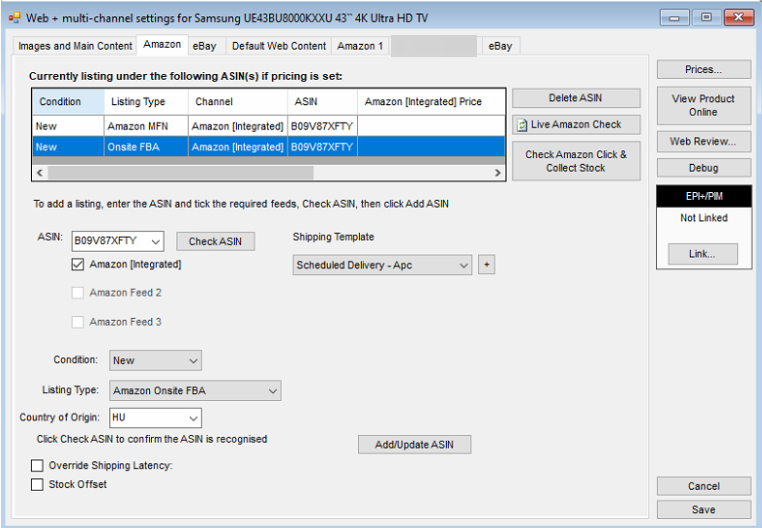
<span class="TextRun SCXW119559566 BCX8" data-contrast="auto" lang="EN-GB" xml:lang="EN-GB"><span class="NormalTextRun SCXW119559566 BCX8" data-ccp-parastyle="Normal (Web)">Go to Product Info &gt; Web &gt; Web/Multi Channel settings &gt; Amazon</span></span>

[![image.png](https://kb.findesolutions.com/uploads/images/gallery/2025-07/scaled-1680-/ZFwsPdVKNeX1RyQU-image.png)](https://kb.findesolutions.com/uploads/images/gallery/2025-07/ZFwsPdVKNeX1RyQU-image.png)

<span class="TextRun SCXW119559566 BCX8" data-contrast="auto" lang="EN-GB" xml:lang="EN-GB"><span class="NormalTextRun SCXW119559566 BCX8" data-ccp-parastyle="Normal (Web)">This is the screen where you list an item regardless of if it is </span><span class="NormalTextRun SpellingErrorV2Themed SCXW119559566 BCX8" data-ccp-parastyle="Normal (Web)">Sellerflex</span><span class="NormalTextRun SCXW119559566 BCX8" data-ccp-parastyle="Normal (Web)">, FBA or MFN. </span><span class="NormalTextRun SCXW119559566 BCX8" data-ccp-parastyle="Normal (Web)">So,</span><span class="NormalTextRun SCXW119559566 BCX8" data-ccp-parastyle="Normal (Web)"> for those that already use Amazon via NCompass, this screen will likely look familiar. </span></span>

<span class="TextRun SCXW119559566 BCX8" data-contrast="auto" lang="EN-GB" xml:lang="EN-GB"><span class="NormalTextRun SCXW119559566 BCX8" data-ccp-parastyle="Normal (Web)"> To add a new listing to a product: </span></span><span class="EOP SCXW119559566 BCX8" data-ccp-props="{"134233117":false,"134233118":false,"201341983":0,"335559738":0,"335559739":0,"335559740":240}"> </span>

<div class="SCXW119559566 BCX8" id="bkmrk-acquire-the-asin-of-"><div class="ListContainerWrapper SCXW119559566 BCX8">- <span class="TextRun SCXW119559566 BCX8" data-contrast="auto" lang="EN-GB" xml:lang="EN-GB"><span class="NormalTextRun SCXW119559566 BCX8">Acquire</span><span class="NormalTextRun SCXW119559566 BCX8"> the ASIN of the product from within Amazon</span><span class="NormalTextRun SCXW119559566 BCX8">’s Seller Central</span><span class="NormalTextRun SCXW119559566 BCX8">. </span></span>
- <span class="TextRun SCXW119559566 BCX8" data-contrast="auto" lang="EN-GB" xml:lang="EN-GB"><span class="NormalTextRun SCXW119559566 BCX8">Add the ASIN into the ASIN box</span><span class="NormalTextRun SCXW119559566 BCX8"> in NCompass</span><span class="NormalTextRun SCXW119559566 BCX8">. Pressing check ASIN will do a quick check with Amazon to make sure that the ASIN entered is a valid one. </span></span>
- <span class="TextRun SCXW119559566 BCX8" data-contrast="auto" lang="EN-GB" xml:lang="EN-GB"><span class="NormalTextRun SCXW119559566 BCX8">The Condition allows you to say if the item is New/Used/</span><span class="NormalTextRun ContextualSpellingAndGrammarErrorV2Themed SCXW119559566 BCX8">etc..</span><span class="NormalTextRun SCXW119559566 BCX8">   
    Unless you are listing graded items, leave this</span><span class="NormalTextRun SCXW119559566 BCX8"> as</span><span class="NormalTextRun SCXW119559566 BCX8"> New (which is the default). </span></span>
- <span class="TextRun SCXW119559566 BCX8" data-contrast="auto" lang="EN-GB" xml:lang="EN-GB"><span class="NormalTextRun SCXW119559566 BCX8">Listing type needs to be set to <span style="text-decoration: underline;">On Site FBA</span></span></span>
- <span class="TextRun SCXW119559566 BCX8" data-contrast="auto" lang="EN-GB" xml:lang="EN-GB"><span class="NormalTextRun SCXW119559566 BCX8">Country of Origin needs to be set and match what Amazon believes to be the Country of Origin per the listing information in Seller Central.   
    If this is not set, or set incorrectly, Amazon will not allow the item to be listed. </span></span>
- <span class="TextRun SCXW119559566 BCX8" data-contrast="auto" lang="EN-GB" xml:lang="EN-GB"><span class="NormalTextRun SCXW119559566 BCX8">Shipping Template needs to match an existing Shipping template being used in Seller Central. </span></span><span class="EOP SCXW119559566 BCX8" data-ccp-props="{"201341983":0,"335559739":0,"335559740":240}"> </span>
- <span class="TextRun SCXW119559566 BCX8" data-contrast="auto" lang="EN-GB" xml:lang="EN-GB"><span class="NormalTextRun SCXW119559566 BCX8">When ready, press Add/Update </span><span class="NormalTextRun ContextualSpellingAndGrammarErrorV2Themed SCXW119559566 BCX8">ASIN</span><span class="NormalTextRun ContextualSpellingAndGrammarErrorV2Themed SCXW119559566 BCX8">, and</span><span class="NormalTextRun SCXW119559566 BCX8"> then Save </span><span class="NormalTextRun SCXW119559566 BCX8">to list it on </span><span class="NormalTextRun SpellingErrorV2Themed SCXW119559566 BCX8">Sellerflex</span><span class="NormalTextRun SCXW119559566 BCX8">. </span></span><span class="EOP SCXW119559566 BCX8" data-ccp-props="{"201341983":0,"335559739":0,"335559740":240}"> </span>

</div></div><span class="TextRun SCXW119559566 BCX8" data-contrast="auto" lang="EN-GB" xml:lang="EN-GB"><span class="NormalTextRun SCXW119559566 BCX8" data-ccp-parastyle="Normal (Web)">This should then appear in Amazon SellerCentral after about 10-15 mins as a</span><span class="NormalTextRun SCXW119559566 BCX8" data-ccp-parastyle="Normal (Web)">n</span><span class="NormalTextRun SCXW119559566 BCX8" data-ccp-parastyle="Normal (Web)"> *MFN* Listing  
</span></span>

<p class="callout info"><span class="EOP SCXW119559566 BCX8" data-ccp-props="{"134233117":false,"134233118":false,"201341983":0,"335559738":0,"335559739":0,"335559740":240}">Note: the exact time it takes to appear in SellerCentral is entirely dependant on how quickly Amazon process the information we send them.   
We have found, especially during peak trading periods that this can take in excess of 20 minutes. So please plan around this accordingly  
</span></p>

<span class="EOP SCXW119559566 BCX8" data-ccp-props="{"134233117":false,"134233118":false,"201341983":0,"335559738":0,"335559739":0,"335559740":240}">  
</span><span class="TextRun SCXW119559566 BCX8" data-contrast="auto" lang="EN-GB" xml:lang="EN-GB"><span class="NormalTextRun SCXW119559566 BCX8" data-ccp-parastyle="Normal (Web)">Once it has appeared, change the listing type on Seller Central itself to </span><span class="NormalTextRun SCXW119559566 BCX8" data-ccp-parastyle="Normal (Web)">Onsite </span><span class="NormalTextRun SCXW119559566 BCX8" data-ccp-parastyle="Normal (Web)">FBA. At this point you may be required t</span><span class="NormalTextRun SCXW119559566 BCX8" data-ccp-parastyle="Normal (Web)">o fill </span><span class="NormalTextRun SCXW119559566 BCX8" data-ccp-parastyle="Normal (Web)">out some type of </span><span class="NormalTextRun SCXW119559566 BCX8" data-ccp-parastyle="Normal (Web)">form</span><span class="NormalTextRun SCXW119559566 BCX8" data-ccp-parastyle="Normal (Web)"> (like a Hazmat form) before you can convert the listing.   
If this is not done, NCompass will not be fully linked to the listing. And will prevent stock and prices changes made against the product in NCompass from pushing up to Amazon. </span></span><span class="LineBreakBlob BlobObject DragDrop SCXW119559566 BCX8"><span class="SCXW119559566 BCX8">  
</span></span><span class="TextRun SCXW119559566 BCX8" data-contrast="auto" lang="EN-GB" xml:lang="EN-GB"><span class="NormalTextRun SCXW119559566 BCX8" data-ccp-parastyle="Normal (Web)">   
When this has been done, NCompass is now linked to this listing in SellerCentral. </span></span>

### <span class="EOP SCXW119559566 BCX8" data-ccp-props="{"134233117":false,"134233118":false,"201341983":0,"335559738":0,"335559739":0,"335559740":240}">3.3 - Stock Levels on SmartConnect</span>

<div class="SCXW119559566 BCX8" id="bkmrk--5"><div class="ListContainerWrapper SCXW119559566 BCX8">During the initial setup process, Calculus Support will link one or more of your stock rooms up to SmartConnect, so that only items in the specified stock room(s) will be listed on Amazon.   
Anytime you Goods In, Dispose of, or Transfer items into these stock rooms, NCompass will send up the new stock quantity for that product up to Amazon. So the Amazon listing is kept up to date with your stock levels in NCompass.   
  
</div></div><span class="TextRun SCXW119559566 BCX8" data-contrast="auto" lang="EN-GB" xml:lang="EN-GB"><span class="NormalTextRun SCXW119559566 BCX8" data-ccp-parastyle="Normal (Web)">However, you may see a scenario where NCompass shows quantity X of a product in stock, but in Amazon it is showing quantity Y, this will be due to how Amazon calculates free stock. </span></span><span class="EOP SCXW119559566 BCX8" data-ccp-props="{"134233117":false,"134233118":false,"201341983":0,"335559738":0,"335559739":0,"335559740":240}"> </span>

<span class="TextRun SCXW119559566 BCX8" data-contrast="auto" lang="EN-GB" xml:lang="EN-GB"><span class="NormalTextRun SCXW119559566 BCX8" data-ccp-parastyle="Normal (Web)">As mentioned, when you list an item in N</span><span class="NormalTextRun SCXW119559566 BCX8" data-ccp-parastyle="Normal (Web)">C</span><span class="NormalTextRun SCXW119559566 BCX8" data-ccp-parastyle="Normal (Web)">ompass, NCompass will tell Amazon the stock quantities of that product. Amazon then take that quantity, and do their own calculations with it, to say what the true stock quantity of that product is in thier eyes. </span></span>

<span class="TextRun SCXW119559566 BCX8" data-contrast="auto" lang="EN-GB" xml:lang="EN-GB"><span class="NormalTextRun SCXW119559566 BCX8" data-ccp-parastyle="Normal (Web)">Amazon have not given us the specifics of the calculations they do, but t</span></span><span class="TextRun SCXW119559566 BCX8" data-contrast="auto" lang="EN-GB" xml:lang="EN-GB"><span class="NormalTextRun SCXW119559566 BCX8" data-ccp-parastyle="Normal (Web)">his will include things like Amazon being aware of orders that N</span><span class="NormalTextRun SCXW119559566 BCX8" data-ccp-parastyle="Normal (Web)">C</span><span class="NormalTextRun SCXW119559566 BCX8" data-ccp-parastyle="Normal (Web)">ompass has not been told about </span><span class="NormalTextRun ContextualSpellingAndGrammarErrorV2Themed SCXW119559566 BCX8" data-ccp-parastyle="Normal (Web)">yet, or</span><span class="NormalTextRun SCXW119559566 BCX8" data-ccp-parastyle="Normal (Web)"> being aware of how many people have the item in their basket but have not placed the order yet. </span></span><span class="LineBreakBlob BlobObject DragDrop SCXW119559566 BCX8"><span class="SCXW119559566 BCX8"> </span>  
</span><span class="TextRun SCXW119559566 BCX8" data-contrast="auto" lang="EN-GB" xml:lang="EN-GB"><span class="NormalTextRun SCXW119559566 BCX8" data-ccp-parastyle="Normal (Web)">  
This means that it is expected that there may be a discrepancy in stock levels for listings. </span></span>

<span class="TextRun SCXW119559566 BCX8" data-contrast="auto" lang="EN-GB" xml:lang="EN-GB"><span class="NormalTextRun SCXW119559566 BCX8" data-ccp-parastyle="Normal (Web)">To mitigate this, or to adjust what you want the stock level of an item to appear as in Seller Central, you can add a Stock Offset.   
This can either be done on a listing per listing basis by setting the below:   
</span></span>

[![image.png](https://kb.findesolutions.com/uploads/images/gallery/2025-07/scaled-1680-/uqwpsmkkP2C3zTZQ-image.png)](https://kb.findesolutions.com/uploads/images/gallery/2025-07/uqwpsmkkP2C3zTZQ-image.png)

Or setting a Global stock Cap against all listings, which is something the Support team will be able to change for you if required.

<p class="callout info"><span class="LineBreakBlob BlobObject DragDrop SCXW119559566 BCX8"><span class="SCXW119559566 BCX8">Note: This Global Cap </span></span><span class="TextRun SCXW119559566 BCX8" data-contrast="auto" lang="EN-GB" xml:lang="EN-GB"><span class="NormalTextRun SCXW119559566 BCX8" data-ccp-parastyle="Normal (Web)">will affect </span></span><span class="TextRun SCXW119559566 BCX8" data-contrast="auto" lang="EN-GB" xml:lang="EN-GB"><span class="NormalTextRun SCXW119559566 BCX8" data-ccp-parastyle="Normal (Web)">all</span></span><span class="TextRun SCXW119559566 BCX8" data-contrast="auto" lang="EN-GB" xml:lang="EN-GB"><span class="NormalTextRun SCXW119559566 BCX8" data-ccp-parastyle="Normal (Web)"> Amazon listing types if used, not just </span><span class="NormalTextRun SpellingErrorV2Themed SCXW119559566 BCX8" data-ccp-parastyle="Normal (Web)">SmartConnect</span></span><span class="TextRun SCXW119559566 BCX8" data-contrast="auto" lang="EN-GB" xml:lang="EN-GB"><span class="NormalTextRun SCXW119559566 BCX8" data-ccp-parastyle="Normal (Web)">.</span></span></p>

## <span class="TextRun SCXW119559566 BCX8" data-contrast="none" lang="EN-GB" xml:lang="EN-GB"><span class="NormalTextRun SpellingErrorV2Themed SCXW119559566 BCX8" data-ccp-parastyle="heading 1">4 - Seeing your SmartConnect Sales in NCompass  
</span></span>

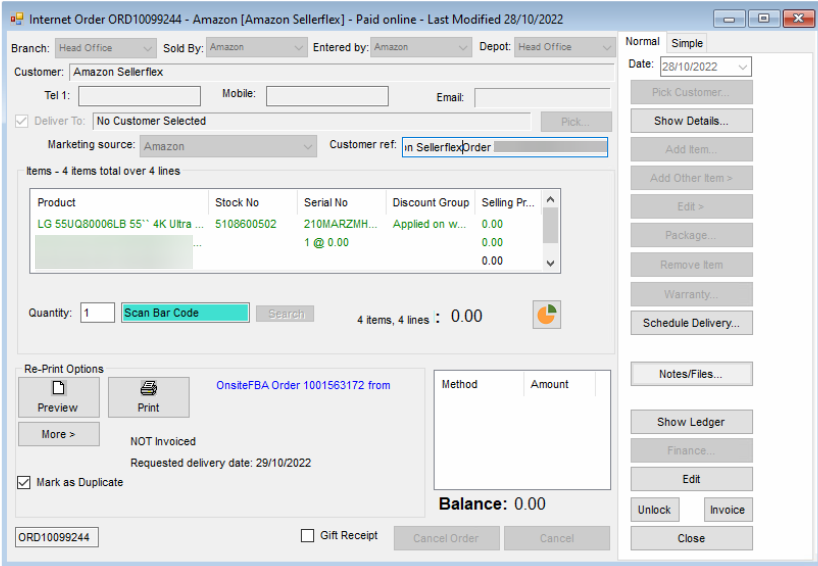
<div class="SCXW119559566 BCX8" id="bkmrk--8"></div><span class="TextRun SCXW119559566 BCX8" data-contrast="auto" lang="EN-GB" xml:lang="EN-GB"><span class="NormalTextRun SCXW119559566 BCX8" data-ccp-parastyle="Normal (Web)">When a sale is placed by a customer in Seller Central, Amazon will create something called a Shipment for that sale.   
Once that shipment has been created, and not before, NCompass will then import that order into your system, and a Field Call linked to it.   
  
</span><span class="NormalTextRun SCXW119559566 BCX8" data-ccp-parastyle="Normal (Web)">When that happens, it will do so against a customer called Amazon </span><span class="NormalTextRun SpellingErrorV2Themed SCXW119559566 BCX8" data-ccp-parastyle="Normal (Web)">Sellerflex</span><span class="NormalTextRun SCXW119559566 BCX8" data-ccp-parastyle="Normal (Web)">, and with no payment against it: </span></span><span class="LineBreakBlob BlobObject DragDrop SCXW119559566 BCX8">  
</span><span class="TextRun SCXW119559566 BCX8" data-contrast="auto" lang="EN-GB" xml:lang="EN-GB"><span class="NormalTextRun SCXW119559566 BCX8" data-ccp-parastyle="Normal (Web)"> [![image.png](https://kb.findesolutions.com/uploads/images/gallery/2025-07/scaled-1680-/jBN19pkBNhArwWiA-image.png)](https://kb.findesolutions.com/uploads/images/gallery/2025-07/jBN19pkBNhArwWiA-image.png)</span></span>  
<span class="TextRun SCXW119559566 BCX8" data-contrast="auto" lang="EN-GB" xml:lang="EN-GB"><span class="NormalTextRun SCXW119559566 BCX8" data-ccp-parastyle="Normal (Web)">  
It is by design that </span></span><span class="TextRun SCXW119559566 BCX8" data-contrast="auto" lang="EN-GB" xml:lang="EN-GB"><span class="NormalTextRun SCXW119559566 BCX8" data-ccp-parastyle="Normal (Web)">Amazon will not tell NCompass</span><span class="NormalTextRun SCXW119559566 BCX8" data-ccp-parastyle="Normal (Web)"> any details on the sale, apart from the product(s) on it, until the Sale has been marked as Shipped, which we'll go into more details below. </span></span>

<p class="callout info"><span class="TextRun SCXW119559566 BCX8" data-contrast="auto" lang="EN-GB" xml:lang="EN-GB"><span class="NormalTextRun SCXW119559566 BCX8" data-ccp-parastyle="Normal (Web)">This is a requirement set by, and enforced by</span><span class="NormalTextRun SCXW119559566 BCX8" data-ccp-parastyle="Normal (Web)">, </span><span class="NormalTextRun SCXW119559566 BCX8" data-ccp-parastyle="Normal (Web)">Amazon. </span></span><span class="EOP SCXW119559566 BCX8" data-ccp-props="{"134233117":false,"134233118":false,"201341983":0,"335559738":0,"335559739":0,"335559740":240}"> </span></p>

Once it has been marked as Shipped, NCompass will then automatically update the sale to show the genuine Customer details, and the payment method.

<p class="callout warning">Warning: If the sale is marked as Cancelled in SellerCentral at any point, it will automatically Cancel the sale in NCompass </p>

## <span class="TextRun SCXW119559566 BCX8" data-contrast="none" lang="EN-GB" xml:lang="EN-GB"><span class="NormalTextRun SCXW119559566 BCX8" data-ccp-parastyle="heading 1">5 - </span><span class="NormalTextRun SCXW119559566 BCX8" data-ccp-parastyle="heading 1">Marking your Items as shipped.</span><span class="NormalTextRun SCXW119559566 BCX8" data-ccp-parastyle="heading 1"> </span></span>

### <span class="EOP SCXW119559566 BCX8" data-ccp-props="{"134245418":true,"134245529":true,"335559738":240,"335559739":0}">5.1 - Picking and Labelling </span>

<div class="SCXW119559566 BCX8" id="bkmrk--10"></div><span class="TextRun SCXW119559566 BCX8" data-contrast="none" lang="EN-GB" xml:lang="EN-GB"><span class="NormalTextRun SCXW119559566 BCX8" data-ccp-parastyle="heading 1">At various intervals during a day, an Amazon Lorry will arrive at your Shop/Warehouse to collect stock that needs to be delivered to the customer on that day. Amazon will discuss the exact timings of this with you in more detail during the on boarding process.   
  
Before the Lorry arrives, you will need to prepare the pick, pack and label your stock so it's ready to be moved.   
  
</span></span><span class="TextRun SCXW119559566 BCX8" data-contrast="auto" lang="EN-GB" xml:lang="EN-GB"><span class="NormalTextRun SCXW119559566 BCX8">To do that, find a list of all the Amazon SmartConnect field calls that are due to be collected today, which can be done by: </span></span>

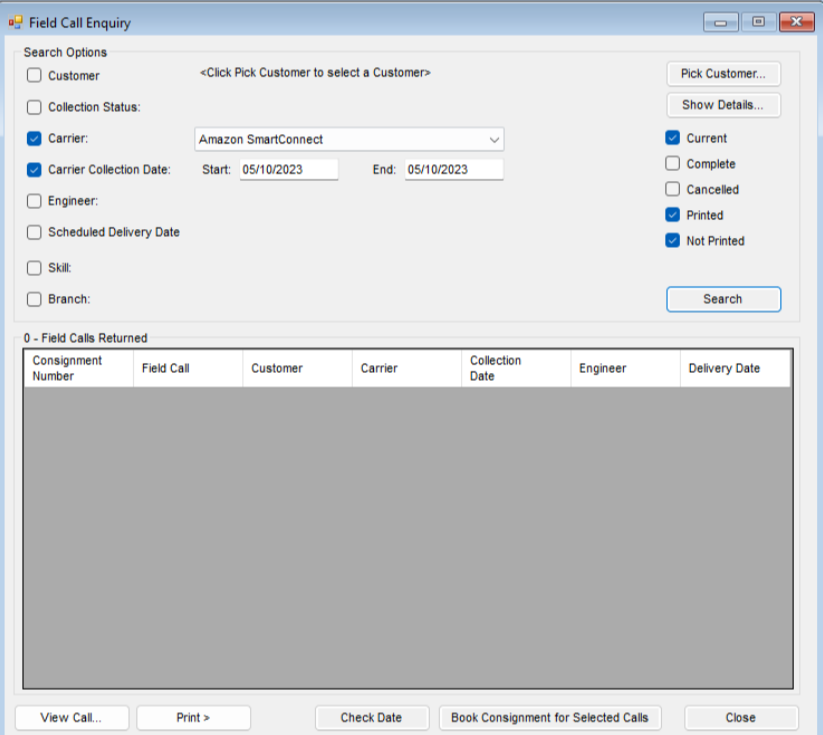
<div class="SCXW119559566 BCX8" id="bkmrk-go-to-field-calls-%3E-"><div class="ListContainerWrapper SCXW119559566 BCX8">- <span class="TextRun SCXW119559566 BCX8" data-contrast="auto" lang="EN-GB" xml:lang="EN-GB"><span class="NormalTextRun SCXW119559566 BCX8">Go to Field Calls &gt; Field Call Enquiry, </span><span class="NormalTextRun SCXW119559566 BCX8">you’ll</span><span class="NormalTextRun SCXW119559566 BCX8"> be presented with the below screen</span><span class="NormalTextRun SCXW119559566 BCX8">:  
    </span></span>
    
    [![image.png](https://kb.findesolutions.com/uploads/images/gallery/2025-04/scaled-1680-/MdxZfFRfpL2sh2Do-image.png)](https://kb.findesolutions.com/uploads/images/gallery/2025-04/MdxZfFRfpL2sh2Do-image.png)
    
    <span class="TextRun SCXW119559566 BCX8" data-contrast="auto" lang="EN-GB" xml:lang="EN-GB"><span class="NormalTextRun SCXW119559566 BCX8">  
    </span></span>
- <span class="TextRun SCXW119559566 BCX8" data-contrast="auto" lang="EN-GB" xml:lang="EN-GB"><span class="NormalTextRun SCXW119559566 BCX8">Set the </span></span><span class="TextRun Underlined SCXW119559566 BCX8" data-contrast="auto" lang="EN-GB" xml:lang="EN-GB"><span class="NormalTextRun SCXW119559566 BCX8">Carrier</span></span><span class="TextRun SCXW119559566 BCX8" data-contrast="auto" lang="EN-GB" xml:lang="EN-GB"><span class="NormalTextRun SCXW119559566 BCX8"> to be Amazon </span><span class="NormalTextRun SpellingErrorV2Themed SCXW119559566 BCX8">Smartconnect</span></span>
- <span class="TextRun SCXW119559566 BCX8" data-contrast="auto" lang="EN-GB" xml:lang="EN-GB"><span class="NormalTextRun SCXW119559566 BCX8">Set Carrier Collection Date to the </span><span class="NormalTextRun SCXW119559566 BCX8">Date Amazon are coming to the collect the items (so todays date).</span></span>
- <span class="TextRun SCXW119559566 BCX8" data-contrast="auto" lang="EN-GB" xml:lang="EN-GB"><span class="NormalTextRun SCXW119559566 BCX8">Click Search, and </span><span class="NormalTextRun SCXW119559566 BCX8">you’ll</span><span class="NormalTextRun SCXW119559566 BCX8"> be presented with a list of field calls which we will want to be picking stock for. </span></span>

</div></div><span class="TextRun SCXW119559566 BCX8" data-contrast="auto" lang="EN-GB" xml:lang="EN-GB"><span class="NormalTextRun SCXW119559566 BCX8">Next, we need to generate a label for these items, which is done via:   
</span></span>

- <span class="TextRun SCXW119559566 BCX8" data-contrast="auto" lang="EN-GB" xml:lang="EN-GB"><span class="NormalTextRun SCXW119559566 BCX8">Field Calls &gt; Goods Dispatch &gt; Pack Items Ready for Dispatch  
    </span></span>
- <span class="TextRun SCXW119559566 BCX8" data-contrast="auto" lang="EN-GB" xml:lang="EN-GB"><span class="NormalTextRun SCXW119559566 BCX8">Scan the Field Call number into the Barcode box at the bottom of the screen </span></span>
- <span class="TextRun SCXW119559566 BCX8" data-contrast="auto" lang="EN-GB" xml:lang="EN-GB"><span class="NormalTextRun SCXW119559566 BCX8">Scan the stock number of the item you need to generate a label for </span></span>
- <span class="TextRun SCXW119559566 BCX8" data-contrast="auto" lang="EN-GB" xml:lang="EN-GB"><span class="NormalTextRun SCXW119559566 BCX8">Press Packing Finished </span></span>
- <span class="TextRun SCXW119559566 BCX8" data-contrast="auto" lang="EN-GB" xml:lang="EN-GB"><span class="NormalTextRun SCXW119559566 BCX8">NCompass will then print off a label for you to stick on the product</span></span>
- <span class="TextRun SCXW119559566 BCX8" data-contrast="auto" lang="EN-GB" xml:lang="EN-GB"><span class="NormalTextRun SCXW119559566 BCX8">Move the item to the required location in your Shop/Warehouse in preparation for the Amazon Lorry's arrival </span></span>
- <span class="TextRun SCXW119559566 BCX8" data-contrast="auto" lang="EN-GB" xml:lang="EN-GB"><span class="NormalTextRun SCXW119559566 BCX8">Repeat this process for each item you need to make a label for </span></span>

<span class="TextRun SCXW119559566 BCX8" data-contrast="auto" lang="EN-GB" xml:lang="EN-GB"><span class="NormalTextRun SCXW119559566 BCX8">  
</span></span>

### <span class="TextRun SCXW119559566 BCX8" data-contrast="auto" lang="EN-GB" xml:lang="EN-GB"><span class="NormalTextRun SCXW119559566 BCX8"><span data-teams="true">5.2 - Marking as Shipped</span></span></span>

<span class="TextRun SCXW119559566 BCX8" data-contrast="auto" lang="EN-GB" xml:lang="EN-GB"><span class="NormalTextRun SCXW119559566 BCX8">When the Amazon Lorry arrives, load all of our items that we printed labels off for onto the Lorry.   
  
Once that has been done, we need to tell Amazon that they have been Shipped.   
We do this by simply marking the Field Call as completed. It is at this point that Amazon know the item has been marked as Shipped.  
  
You can either do this by going into each individual Field Call and marking it as completed.   
Or, using the preferred method of: </span></span>

- <span class="TextRun SCXW119559566 BCX8" data-contrast="auto" lang="EN-GB" xml:lang="EN-GB"><span class="NormalTextRun SCXW119559566 BCX8">Field Calls &gt; Batch Complete </span></span>
- <span class="TextRun SCXW119559566 BCX8" data-contrast="auto" lang="EN-GB" xml:lang="EN-GB"><span class="NormalTextRun SCXW119559566 BCX8">Scan the Amazon Consignment Number into the Bar-code box</span></span>
- <span class="TextRun SCXW119559566 BCX8" data-contrast="auto" lang="EN-GB" xml:lang="EN-GB"><span class="NormalTextRun SCXW119559566 BCX8">This will load all the field calls that we have just shipped out into this window </span></span>
- <span class="TextRun SCXW119559566 BCX8" data-contrast="auto" lang="EN-GB" xml:lang="EN-GB"><span class="NormalTextRun SCXW119559566 BCX8">Press Complete All </span></span>

<p class="callout info"><span class="TextRun SCXW119559566 BCX8" data-contrast="auto" lang="EN-GB" xml:lang="EN-GB"><span class="NormalTextRun SCXW119559566 BCX8">Note: The Field Call must be manually marked as completed to tell Amazon the item has been marked as Shipped. NCompass will not do this automatically for you. </span></span></p>

<span class="TextRun SCXW119559566 BCX8" data-contrast="auto" lang="EN-GB" xml:lang="EN-GB"><span class="NormalTextRun SCXW119559566 BCX8">Repeat that process for each item that is being loaded onto the Amazon Lorry, and then you're finished!</span></span>